

Why Your ISP Router Deserves a Second Look
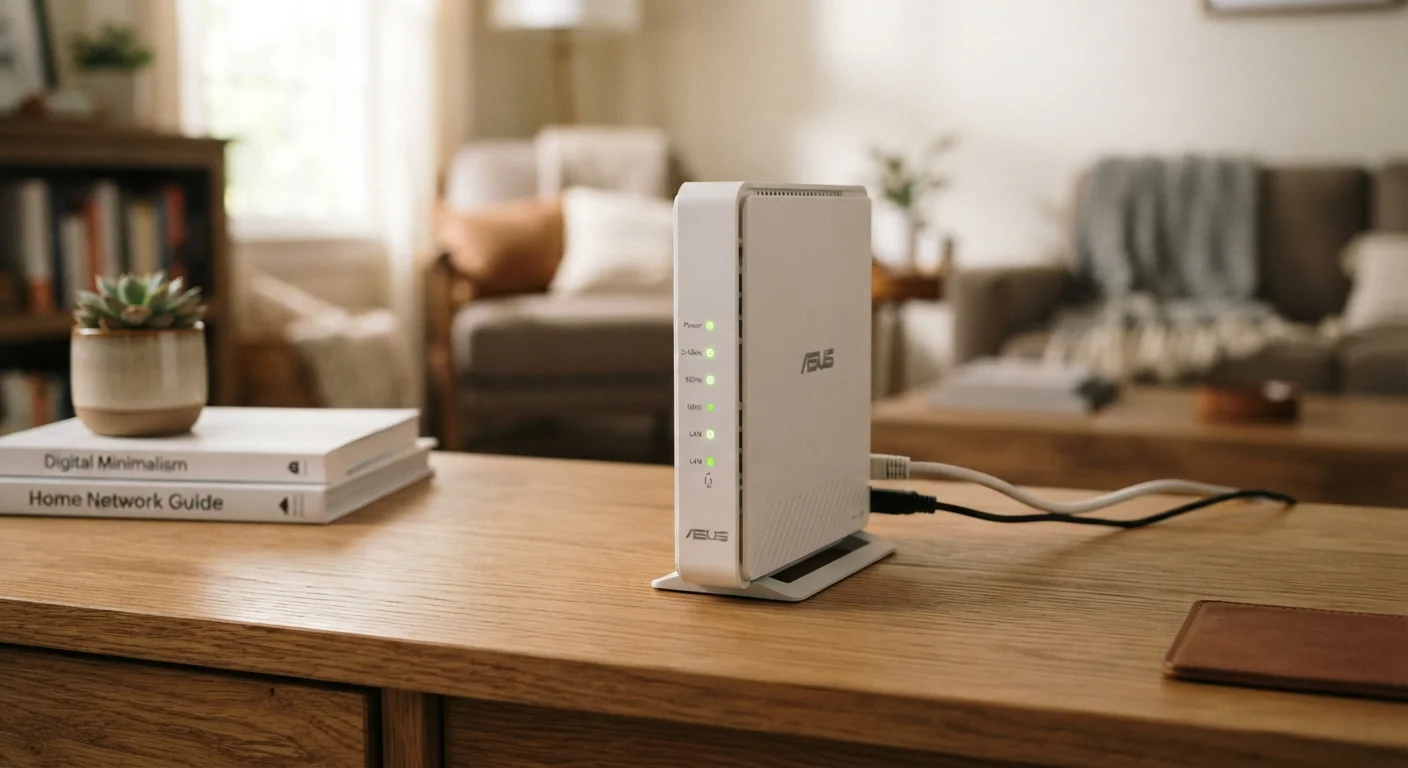
When a technician installs your internet service, the router they leave behind is rarely discussed beyond "plug it in and it should work." Most households never log into it again. That's a missed opportunity.
ISP-provided routers - sometimes called gateway devices when they combine a modem and router - are often mid-range hardware with solid reliability for everyday use. Their real weakness isn't usually the hardware itself; it's the factory defaults. Out of the box, these devices are configured for ease of setup, not optimized performance or security.
Before assuming you need to buy a separate router, it's worth spending 30 minutes in the admin panel. For many households, the changes you can make there are enough to meaningfully improve daily performance. And if you decide an upgrade still makes sense, you'll at least understand what you're working around. See common myths about internet speeds that can lead to unnecessary gear purchases.
Core Practices for Getting More From Your ISP Router
These practices apply to most ISP-provided routers regardless of manufacturer. Specific menus and labels vary by model - consult your device's documentation or the ISP's support page for exact navigation.
Change the default admin credentials immediately after setup.
ISP routers ship with predictable default usernames and passwords that are publicly documented. Leaving them unchanged gives anyone on your network - or anyone who briefly accesses it - easy entry to your router's settings. A strong, unique admin password is the single most important security step.
Set a strong, unique Wi-Fi password and use WPA3 or WPA2 encryption.
Older encryption standards like WEP are trivially cracked. WPA2 is widely supported and acceptable; WPA3 is preferred if your devices support it. A weak or shared Wi-Fi password is the most common way unwanted users end up on a home network.
Choose the correct Wi-Fi band for each use case - 5 GHz for speed, 2.4 GHz for range.
Most ISP routers broadcast on both 2.4 GHz and 5 GHz. The 5 GHz band delivers faster speeds but has shorter range and less wall penetration. The 2.4 GHz band reaches farther but is more congested. Devices on the wrong band for their location consistently underperform.
Manually select a less congested Wi-Fi channel.
By default, routers often auto-select channels, but in apartments or dense neighborhoods, many routers compete on the same channels. Switching to a less crowded channel - particularly channels 1, 6, or 11 on 2.4 GHz - can reduce interference noticeably.
Position the router centrally and elevate it off the floor.
Wi-Fi signals radiate outward in all directions, including downward. A router tucked in a corner or behind a TV cabinet sends a significant portion of its signal into walls and furniture rather than into the rooms you use. Central placement is consistently the highest-impact physical change you can make.
Enable the guest network feature for visitors and smart home devices.
Guest networks keep untrusted devices on a separate network segment, so a compromised smart TV or a guest's phone can't interact with your computers and personal storage. Most ISP routers include this feature but leave it disabled by default.
Quick Wins You Can Apply Today
Not every improvement requires digging through menus. Some of the highest-impact changes take only a few minutes.
For a broader look at how your ISP contract affects what you can and can't do with your equipment, see what your ISP contract actually says. Some rental agreements restrict which settings you're permitted to change.
Knowing When the Router Actually Is the Problem
Even well-configured ISP routers have real limitations. Older units may not support Wi-Fi 6 (802.11ax), which matters if you have many connected devices. Some lack the processing power to handle simultaneous 4K streaming across multiple rooms. And coverage in homes larger than roughly 1,500 square feet often requires a mesh system or at least a well-placed access point - something a single unit can't solve through settings alone.
ISP Rental Routers: What You Control
Many ISPs retain administrative access to rented gateway devices and may push firmware updates or restrict certain settings remotely. This is normal and disclosed in most service agreements. Before making advanced configuration changes, check your ISP's support documentation to confirm which settings are available to customers. Some ISPs lock down features like bridge mode or custom DNS on rented equipment.
The practical test: if speeds measured close to the router match your plan speed but drop significantly in other rooms, that's a coverage or interference issue - not a plan problem. If speeds are consistently low even next to the router, the bottleneck may be the device's hardware, firmware, or the plan itself. Questions worth asking before signing up for a new internet plan can help you evaluate whether a plan change, not a hardware change, is the right move.
ISP routers are also managed remotely by your provider, which means occasional firmware pushes you don't control. This is actually a security benefit - patches get applied automatically - but it also means some advanced settings may be locked or reset. Understanding these boundaries helps you set realistic expectations. Learn more about managing your everyday connected devices at our Everyday Devices hub.
The content on this site is provided for informational purposes only and should not be considered a substitute for professional advice. While we strive to provide accurate and up-to-date information, we make no guarantees regarding its completeness or accuracy. Always consult a qualified professional for advice specific to your circumstances before making any decisions