

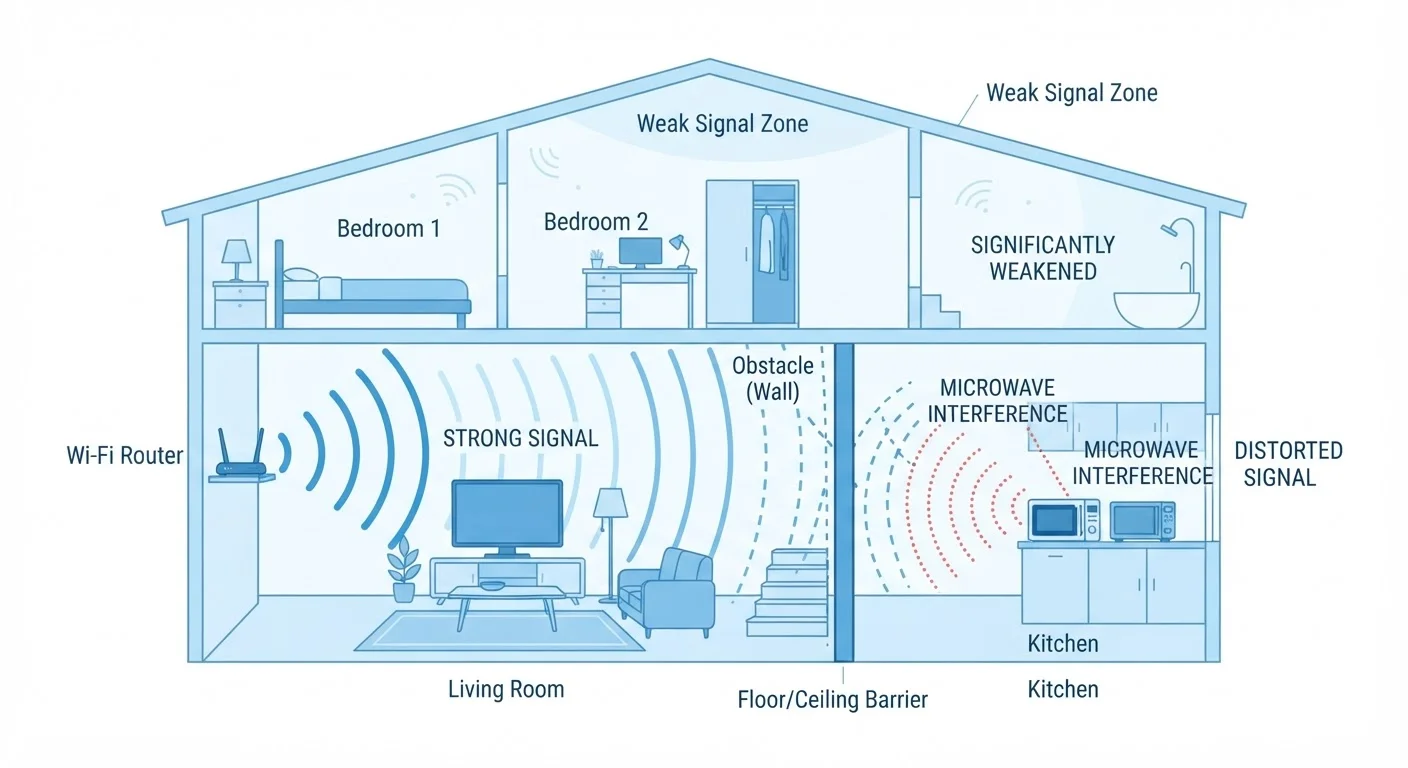
Why Wi-Fi Signals Weaken Before They Reach Your Devices
Wi-Fi uses radio waves to carry data between your router and your phone, laptop, or smart TV. Like all radio waves, they lose energy as they travel - and they lose even more when they have to pass through solid objects. This is the fundamental reason why a router in your living room may deliver a blazing connection on the couch but a crawling one in the upstairs bedroom.
Different building materials absorb Wi-Fi signals to different degrees. Drywall causes minimal interference. Wood and glass are somewhat better. Concrete, brick, and metal are the worst offenders - they can block a significant portion of signal strength with a single barrier. Homes with multiple floors, thick exterior walls, or metal-framed construction naturally challenge Wi-Fi performance more than open-plan spaces.
Distance matters too. Wi-Fi signal power drops off roughly with the square of the distance from the router. Double the distance, and the signal is only about a quarter as strong - even in open air with no obstacles.
~30%
Signal loss through a single interior drywall
General estimates from RF engineering references suggest drywall attenuates 2.4 GHz Wi-Fi signals by roughly 30-40%, with concrete walls causing losses of 60-98%.
2.4 GHz
Frequency shared by Wi-Fi and microwave ovens
The 2.4 GHz band is used by many household devices - including cordless phones, baby monitors, and microwave ovens - creating real-world interference for Wi-Fi networks.
4x
Signal power drop when distance doubles
The inverse-square law of physics means Wi-Fi signal strength falls off sharply with distance - doubling the range from your router reduces signal power to roughly one quarter.
The Hidden Culprits: Interference From Appliances and Neighbors
Physical barriers aren't the only threat. Radio frequency interference from other devices compounds the problem. Cordless phones, baby monitors, Bluetooth speakers, and especially microwave ovens all operate on or near the 2.4 GHz band - the same frequency used by many home routers. When multiple devices compete for the same slice of the radio spectrum, performance degrades for all of them.
Your neighbors' Wi-Fi networks are another underappreciated source of congestion. In dense apartment buildings or suburban neighborhoods, dozens of overlapping networks compete for the same radio channels. Routers that aren't configured to use less-crowded channels can slow down significantly during peak evening hours.
The 5 GHz band, available on most modern routers, offers a practical workaround. It supports faster speeds and experiences less crowding from appliances and older devices - though it doesn't travel as far through walls as 2.4 GHz. Common misconceptions about internet speeds often lead people to overlook these signal-layer issues entirely.
Router Placement: The Single Biggest Variable You Control
Most people put their router wherever it's convenient - near the cable or fiber entry point, which is often a corner of the house or a basement utility room. That placement can leave the majority of your living space under-served.
A router broadcasts signal in all directions, roughly like a sphere of coverage. Placing it in a corner means much of that sphere extends into walls or outside your home rather than into the rooms you use. A central, elevated location - like a main-floor hallway shelf or the middle of an open-plan living area - distributes coverage far more evenly.
A few practical placement principles:
- Keep the router in the open, not inside a cabinet, closet, or entertainment center.
- Position it away from large metal objects like refrigerators, metal shelving, or filing cabinets.
- If your router has external antennas, point them vertically for broader horizontal coverage across a single floor, or angle one sideways if you need coverage on multiple levels.
- Avoid placing the router near cordless phone bases or microwave ovens.
Try a Free Wi-Fi Analyzer Before Buying Anything
Several free smartphone apps can scan for nearby networks and show which channels are most congested in your area. This takes less than a minute and can identify whether channel interference is contributing to your slowdowns - before you spend money on new hardware. Your router's admin settings (usually accessed through a browser or a manufacturer app) often let you change channels without any technical expertise.
Practical Ways to Extend Coverage and Reduce Dead Zones
When repositioning the router isn't enough - common in larger homes, split-levels, or older construction - there are several technologies worth understanding.
Range extenders (also called repeaters) pick up the existing Wi-Fi signal and rebroadcast it. They're relatively simple to set up and inexpensive, but they have a real limitation: they typically halve the available bandwidth on the extended network, since they receive and retransmit on the same radio channel.
Mesh Wi-Fi systems use multiple nodes placed around your home, each acting as a full access point that communicates with the others. This approach eliminates most dead zones without the bandwidth penalty of a basic extender. Mesh systems are particularly effective in multi-story homes or buildings with difficult layouts. They're worth understanding if you're experiencing pervasive coverage issues throughout your space - our guide to how smart home devices communicate also explains how these systems interact with other connected gadgets.
Powerline adapters send network data through your home's electrical wiring, which can be useful in specific situations - though performance varies significantly based on the age and quality of your home's electrical circuits.
Before investing in any new hardware, it's worth confirming that your internet service itself is delivering what you're paying for. Understanding your home internet type and plan can help clarify whether the bottleneck is your connection or your in-home Wi-Fi setup.
A family's streaming keeps buffering in the upstairs bedrooms, even though the router's speed test looks fine when tested next to the device in the living room.
A home office worker notices video calls drop consistently around lunchtime, especially when the kitchen microwave is running.
A renter in a large apartment building sets up a new router and still experiences sluggish speeds in the evenings.
A homeowner places a router inside a media console cabinet to hide the cables, then wonders why coverage doesn't reach the back porch.
Frequently Asked Questions
Signal strength drops as it passes through walls, floors, and dense materials like concrete or brick. The farther a device is from the router - and the more obstacles between them - the weaker the signal. Repositioning the router or adding a range extender can help.
Yes. Microwave ovens operate on the 2.4 GHz frequency, the same band used by older Wi-Fi routers and many smart home devices. Running a microwave can temporarily disrupt nearby 2.4 GHz connections. Switching to the 5 GHz band on your router, if available, typically eliminates this problem.
Centrally located, elevated positions work best - such as on a shelf in a central hallway rather than tucked in a corner or closet. Keeping the router away from thick walls, metal objects, and other electronics also helps signal spread more evenly throughout the home.
A dead zone is an area in your home where the Wi-Fi signal is too weak to maintain a stable connection. Common fixes include repositioning the router, adding a Wi-Fi range extender, or upgrading to a mesh Wi-Fi system that uses multiple nodes to blanket larger spaces.
Not necessarily. If the issue is signal interference, router placement, or hardware limitations, a higher-speed plan won't improve coverage. Understanding what's actually causing the slowdown is the first step - see our article on <a href="/technology/home-internet/why-your-home-wi-fi-feels-slow-even-on-a-fast-plan">why fast plans don't always mean fast Wi-Fi</a>.
Rebooting your router every few weeks is a reasonable habit. It clears temporary memory, refreshes network connections, and can resolve minor slowdowns or connectivity glitches. If you find yourself rebooting frequently to stay connected, that may signal a deeper hardware or interference issue.
The content on this site is provided for informational purposes only and should not be considered a substitute for professional advice. While we strive to provide accurate and up-to-date information, we make no guarantees regarding its completeness or accuracy. Always consult a qualified professional for advice specific to your circumstances before making any decisions