

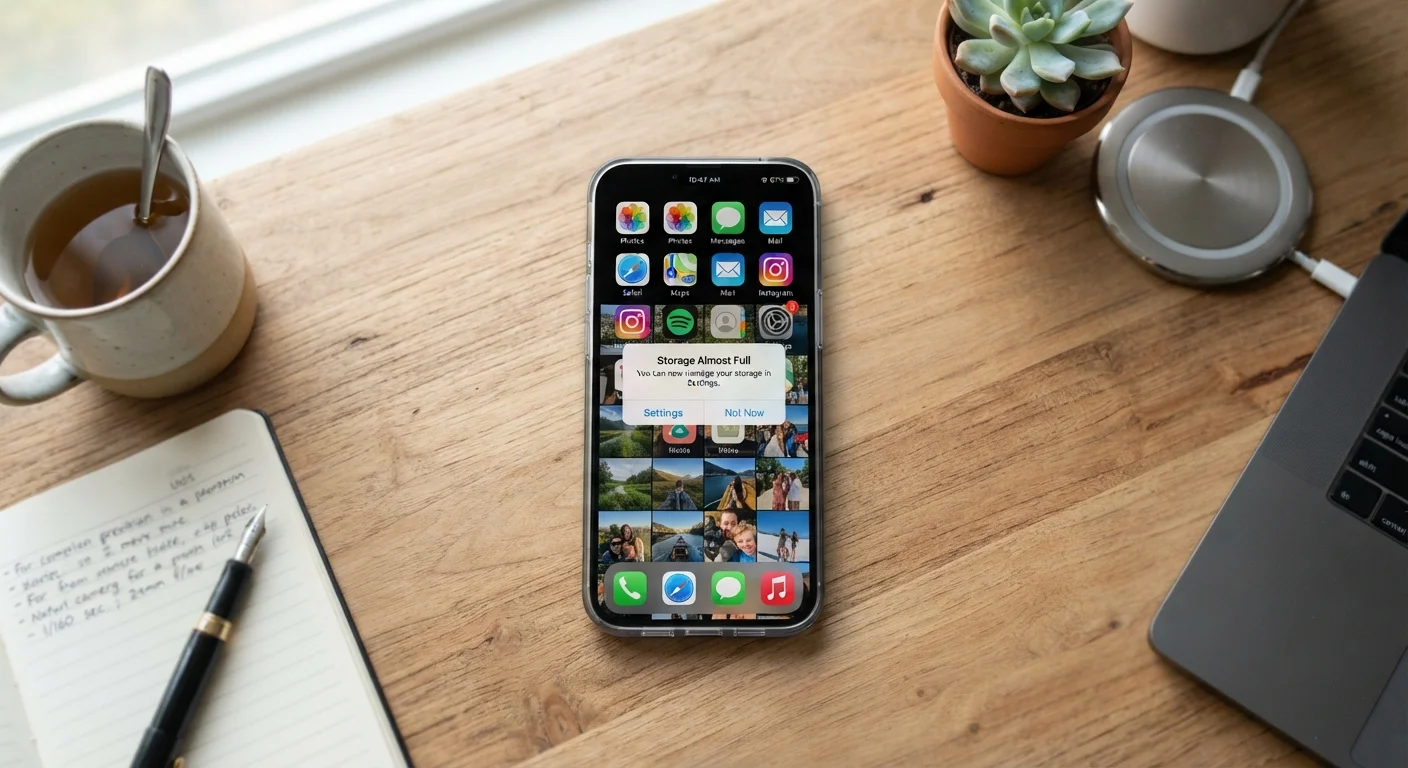
What 'Storage Full' Actually Means
Your phone's storage is its permanent memory - the space where the operating system, apps, photos, videos, and files all live simultaneously. Unlike RAM (the working memory your phone uses to run apps moment-to-moment), storage holds data even when the phone is off. When that space fills up, your phone can't save new files, install updates, or function normally - apps may crash, the camera may refuse to take photos, and performance can degrade noticeably.
What surprises most people is that photos and apps are rarely the only culprits. App cache files, offline downloads, messaging attachments, and system logs all quietly accumulate over months and years. A phone with 128 GB of storage can reach capacity faster than expected, especially with today's high-resolution cameras and data-hungry apps.
Understanding the breakdown - rather than just deleting things at random - lets you recover meaningful space without accidentally losing anything important. The built-in storage tools on both Android and iPhone give you a clear category-by-category picture before you touch anything.
Phone's Built-In Storage Analyzer
Shows a breakdown of what categories of content are using the most space - found under Settings > Storage on both Android and iPhone.
Cloud Backup Service
Lets you move photos and videos off your device while keeping them accessible; reduces local storage use significantly.
Computer with USB Cable
Allows manual transfer of large files - photos, videos, documents - from your phone to free up local space without relying on cloud services.
How to Free Up Space: Step-by-Step
Work through these steps in order. The earlier steps tend to recover the most space with the least risk, so you may not need to complete all of them.
What you will need
Check exactly what's using your storage
Open Settings and navigate to Storage (Android) or General > iPhone Storage (iOS). Both platforms display a visual breakdown of storage by category: apps, photos, system, and other data. Identify which category is consuming the most space before taking any action - this prevents wasted effort targeting the wrong files.
Back up your photos and videos
Media files - photos and videos - are typically the single largest consumer of phone storage. Before deleting any, make sure they are backed up. Enable automatic backup in your cloud photo service of choice, then wait for the sync to complete and confirm the uploads are accessible. Once backed up, you can safely delete local copies or enable 'Optimize Storage' (iOS) or 'Free Up Space' (Google Photos) to keep smaller thumbnails on the device instead of full files.
If you prefer not to use cloud services, transfer files to a computer via USB cable. Our article on cloud vs. local storage explains the trade-offs between both approaches.
Clear app cache on Android
On Android, go to Settings > Apps, select an app, then tap Storage & Cache > Clear Cache. Apps like browsers, music streamers, and navigation tools commonly accumulate hundreds of megabytes - sometimes gigabytes - of cached data over time. This data is rebuilt automatically the next time you use the app, so clearing it causes no data loss.
Repeat this for your most frequently used apps. Some Android phones also offer a one-tap cache clear under the main Storage settings screen.
Remove offline downloads and unused files
Streaming apps for music, podcasts, and video frequently let you download content for offline use - and these downloads accumulate silently. Open each streaming app you use and look for a 'Downloads' or 'Offline' section, then delete content you've already consumed or no longer need.
Also check your Downloads folder directly (Files app on iPhone, Files or Downloads app on Android). This folder collects attachments, PDFs, installation files, and media that were downloaded and then forgotten.
Offload or uninstall apps you no longer use
On iPhone, 'Offloading' an app removes the app itself but preserves its data - so if you reinstall it later, your settings and progress return. Go to Settings > General > iPhone Storage, tap an app, and select Offload App. You can also enable automatic offloading for unused apps in the same menu.
On Android, standard uninstall removes both the app and its data. Review your app list for anything you haven't opened in several months and uninstall those first.
Review and clear messaging app storage
Messaging apps are overlooked storage consumers. Group chats accumulate photos, GIFs, videos, and voice messages automatically. Within apps like iMessage, WhatsApp, or similar services, look for storage management settings that let you review large attachments and bulk-delete old media without losing the text conversation itself.
On iPhone, go to Settings > General > iPhone Storage > Messages to review auto-categorized attachments by size. Delete large items you no longer need.
Make Storage Checks a Monthly Habit
Spending five minutes each month reviewing your storage - especially photos, downloads, and streaming app caches - prevents the sudden 'Storage Full' crisis. Pair this habit with the broader maintenance routine described in our phone maintenance guide to keep your device running smoothly long-term.
Don't Delete Before You Back Up
Before removing photos, videos, or documents, confirm they are safely backed up to a cloud service or your computer. Deleting a file from your phone's local storage is permanent if no backup exists. Take two minutes to verify your backup status before starting any clean-up.
Preventing the Problem Going Forward
Once you've cleared space, a few habits will keep the problem from returning. Enable automatic cloud backup for your camera roll so photos and videos don't pile up locally. Set streaming apps to automatically delete content you've finished. And periodically revisit your Downloads folder, which tends to accumulate forgotten files over time.
Storage management is one part of a broader approach to keeping your device reliable. The practical phone maintenance routine covers how regular storage habits - alongside software updates and battery care - extend your phone's useful life. Similarly, if you've been relying on a wireless plan with cloud storage perks, it's worth understanding what those plans actually include - our piece on unlimited plan limitations explains common restrictions that affect cloud sync and data use.
A phone with healthy storage headroom doesn't just feel faster - it handles updates more reliably and is less likely to lose data at a critical moment. Ten to fifteen minutes of clean-up every month is enough to stay ahead of the problem.
The content on this site is provided for informational purposes only and should not be considered a substitute for professional advice. While we strive to provide accurate and up-to-date information, we make no guarantees regarding its completeness or accuracy. Always consult a qualified professional for advice specific to your circumstances before making any decisions